Saturday, 25 June 2016

Calculate SSCC Check Digit

The last digit of a bar code number is a computer check digit which makes sure the bar code is correctly composed. Below is Logic for generating the Check Digit for SSCC number

The following table gives an example to illustrate how a Check Digit is calculated


Below i have created Stored Procedure to perform the check digit algorithm for SSCC

CREATE PROCEDURE [dbo].[CHECK_DIGIT]

(@PALLET_ID VARCHAR(100),@CHECKDIGIT_TOTAL VARCHAR(20) OUTPUT)
AS
BEGIN
DECLARE @LENGTH INT = 0,
                      @i TINYINT = 0,
                      @evenDigitSum INT = 0,
@oddDigitSum INT = 0,
                      @EA INT = 0,
                      @SumOfDigit INT = 0,
                      @TOTALCHECKDIGIT INT = 0,
                      @CHECKDIGIT INT = 0,
@NEAREST_TEN INT = 0,
                      @ROUNDVALUE INT = 0,
                      @ADD_ZERO INT = 0,
                      @CONVERT_STRING VARCHAR(10),
                      @CONVERT_INT INT = 0,
@TOTAL_CHECK_DIGIT INT  = 0

SET @LENGTH = LEN(RTRIM(LTRIM(@PALLET_ID)))

SET @i = 1
WHILE (@i <= @LENGTH)
BEGIN

SET @EA = @i % 2
IF @EA = 0
BEGIN
SET @evenDigitSum = CONVERT(TINYINT, SUBSTRING(@PALLET_ID,@i,1))
SET @evenDigitSum = @evenDigitSum * 3
SET @SumOfDigit = @evenDigitSum
END
ELSE
BEGIN
SET @oddDigitSum = CONVERT(TINYINT, SUBSTRING(@PALLET_ID,@i,1))
SET @oddDigitSum = @oddDigitSum * 1
SET @SumOfDigit = @oddDigitSum
END
SET @TOTALCHECKDIGIT = @TOTALCHECKDIGIT + @SumOfDigit
SET @i = @i + 1
END

SET @NEAREST_TEN = @TOTALCHECKDIGIT % 10
SET @ROUNDVALUE = ROUND(@NEAREST_TEN,2)
IF @ROUNDVALUE > 1 
BEGIN  
SET @CONVERT_INT = 10 - @ROUNDVALUE
END
ELSE
BEGIN
SET @CONVERT_INT = 0
END 
SET @TOTAL_CHECK_DIGIT = @CONVERT_INT
SET @CHECKDIGIT_TOTAL  = CONVERT(varchar(20), @TOTAL_CHECK_DIGIT)
RETURN @CHECKDIGIT_TOTAL
END
GO

Thursday, 28 April 2016

You don't have access to this requisition number in Dynamics GP

Error : 

I have configured the PR workflow by department wise and setup approver also. I created new PR and submit it.After submitting it goes to approver based on department.When approver tries to pull up the requisition, that time i got below issue.

              You don't have access to this requisition number


Solution : 

Go to Microsoft Dynamics GP > Tools > Setup > Purchasing > Purchase Order Processing
Click on the requisition button, and then click on the "check box" for all requisition.


Hope this Helps!


Wednesday, 2 March 2016

How to enable Remember Username and password in Dynamics GP login screen.

In Dynamics GP2010, 2013, 2015 GP allows you to save username and password so that users need not enter their username or passwords each time they login.

But by default you may see GP would have disabled the Remember user and password checkbox.
How to enable it? Here is the solution.
Solution:
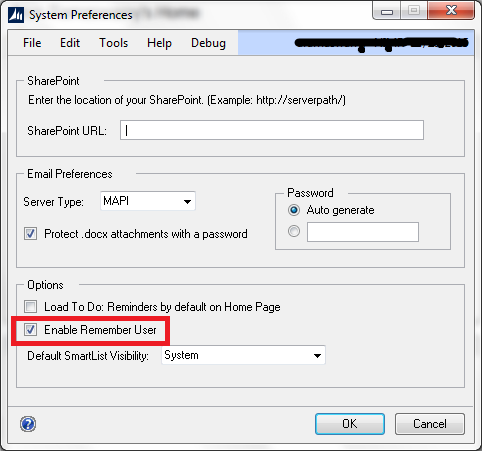
Navigate to   Dynamics GP|Tools|Setup|System|System preferences.


Check the Option Enable Remember User checkbox. Click OK.
So when you login next time you will the remember user and password option enabled.
I have tried this and has worked for me, but unfortunately not all the time and not in all the machine. After a small investigation I found there is a switch inDex.ini to be included. Unfortunately GP didn’t add by itself .So open you Dex.ini file in your GP installation folder. Check for the switch
RememberUser=True
If it is not there then add this Switch to your Dex.ini and open GP again. It works for sure. 


Create Chunk file in dexterity for Dynamics GP

  1. Open Dexterity Utilities
  2. Navigate to File Menu –> Open Source Dictionary (Dictionary you used for your development.)
  3. Go to Utilities ->Extract
  •                   Give a name for your Extracted Dictionary
  •                   Now your Extract dictionary will have all your new forms and reports.
  1. Navigate to File Menu –> Open Destination Dictionary ( Use extracted dictionary created in previous step.)
  2. Go to Transfer ->Dictionary module
  •                   Modified GP Forms and Reports will be updated
  1. Close the Source and Destination Dictionary
  2. Navigate to File Menu –> Open  Editable Dictionary ( Use extracted Dictionary )
  3. Go to Utilities ->Product Information
  •                     Enter the details of your product
  1. Go to Utilities
  2. Auto Chunk
Before performing the above steps its a good and time saving practice to create macro file so that you need not again and again do the above steps.Below are the steps to create macro file in dexterity utilities.
Before creating chunk ,in menu bar you can see a menu named Macro.
  1. click Macro
  2. select Record
That’s it, from then on what ever you do inside the window will be recorded. once you have completed all the above steps stop macro. Next time when creating chunk file just run the macro.
Also do have a look into David Musgrave Best Practice for Dexterity Version and Build Numbers explaining a very important concept that should be followed in chunk creation process.

The type or namespace name 'Dynamics' does not exist in the namespace 'Microsoft' (are you missing an assembly reference?) issue in Dynamics GP 2015 R2

Error :

         The type or namespace name 'Dynamics' does not exist in the namespace 'Microsoft' (are you missing an assembly reference?) issue in Dynamics GP 2015 R2.


Solution :

            Step 1:    Change the .Net framework to 4.5.1 and build the project
          Step 2:    Close the application and Reopen Visual Studio to Run as Administrator


Tuesday, 1 March 2016

Microsoft sql server native client 11.0 sql server A.NET framework error occurred during execution of user-defined routine or aggregate "GetAsignedUsers"

Error Message :

 Microsoft sql server native client 11.0 sql server A.NET
framework error occurred during execution of user-defined routine or aggregate "GetAsignedUsers"


Solution :

Run this against your Dynamics database:

exec wfDeployClrAssemblies

Saturday, 4 July 2015

eConnect Integration Service Not Running

While I was working on the series of posts for how to install the Web Services for Microsoft Dynamics GP, I encountered a couple of problems which I thought it might be worth covering in this and the next post.
The first was to do with the eConnect Integration Service which is installed as part of the install of Web Services. The basic problem was that the service was not running;
Services - eConnect for Microsoft Dynamics GP 2013 Integration Service
When I tried to manually start the service I got this error message;
Services - The eConnect for Microsoft Dynamics GP Integration Service service on Local Computer started and then stopped. Some services stop automatically if they are not in use by other services or programs.The eConnect for Microsoft Dynamics GP Integration Service service on Local Computer started and then stopped. Some services stop automatically if they are not in use by other services or programs.
In this case, I know the service should always be running and doesn’t stop automatically so there is a problem. I opened Event Viewer to check if any errors were being raised;
Event Viewer >> Windows Logs >> Application
I opened one of the listed errors to see the details but unfortunately there wasn’t a great deal more detail;
Event Properties - Event 18, System.ServiceModel 4.0.0.0
However, the “WMI provider was not registered” is usually a permissions issue. So to increase the permissions of the account being used to run the eConnect Service, I opened resolve the Local Users and Groups manager from Control Panel and selected the Administrators group;
lusrmgr - Local Users and Groups (Local)
I added the account being used for eConnect (DOMAIN\srvc.gpweb.app) to the Administrators group and clicked OK to save the update;
Administrators Properties
Back in Services I was able to start the eConnect for Microsoft Dynamics GP 2013 Integration Service without error;
Services